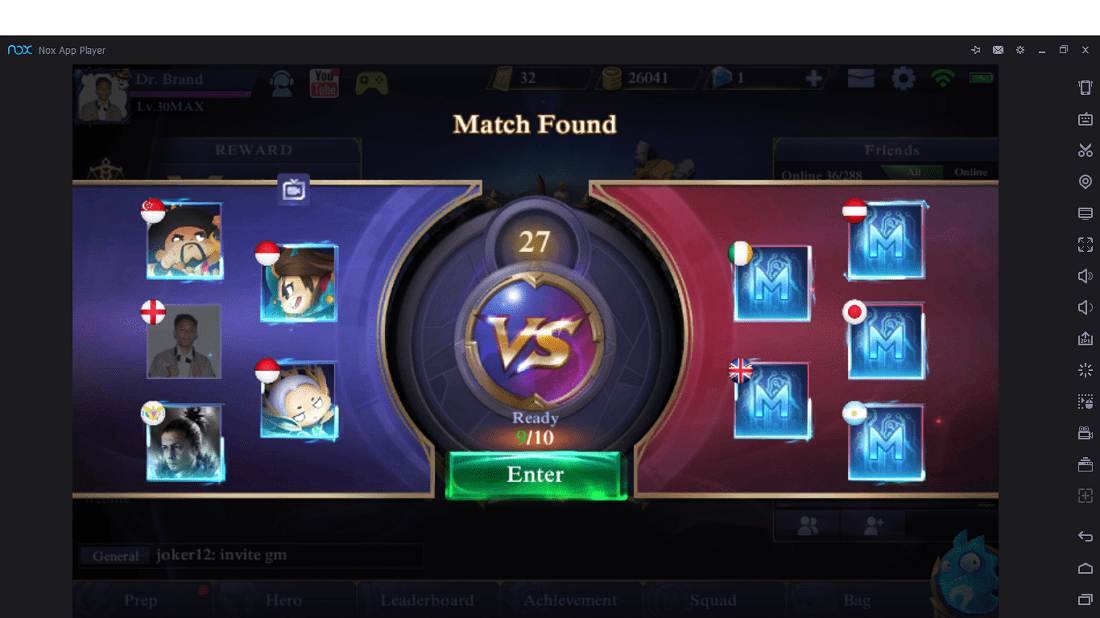
Tips&Trik Bermain Mobile Legends di PC RAM 2 GB + NOX 100000%


Kamu tentu pernah dong menonton para YouTuber Gaming bermain Mobile Legends dan tampilannya sedikit berbeda dengan punya kamu. Ya! Soalnya rata-rata YouTuber tersebut bermain Mobile Legends bukan menggunakan smartphone Android, melainkan menggunakan sebuah PC atau Laptop milik mereka.
Dengan bantuan aplikasi Emulator Android, kamu sudah bisa menjalankan aplikasi dan game-game Android di PC atau laptopmu. Namun, tidak semua laptop bisa menjalankan emulator tersebut dengan lancar, terkadang sering terasa lag atau bahkan hang jika menggunakan PC dengan spesifikasi low-end. Buat kamu yang punya PC dengan RAM hanya 2 GB, tidak perlu khawatir. Kali ini Jaka akan kasih tips bagaimana cara bermain Mobile Legends di PC RAM 2 GB tanpa lag. Mau tau bagaimana caranya? Simak yuk sampai selesai.

Tips Bermain Mobile Legends di PC RAM 2 GB Tanpa Lag

1. Wajib Gunakan Emulator Nox

Buat kamu yang menggunakan PC RAM 2 GB, sangat disarankan untuk menggunakan emulator yang bernama Nox. Mengapa? Karena menurut Jaka, emulator yang satu inilah yang paling ringan dan lancar dibandingkan Bluestacks dan lainnya. Untuk aplikasinya, bisa kalian download secara gratis di sini.

2. Sesuaikan Settingan

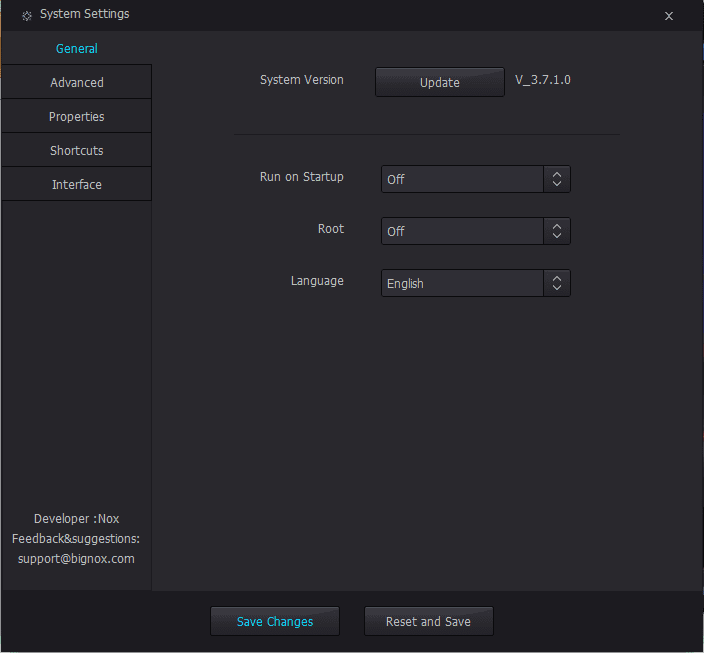
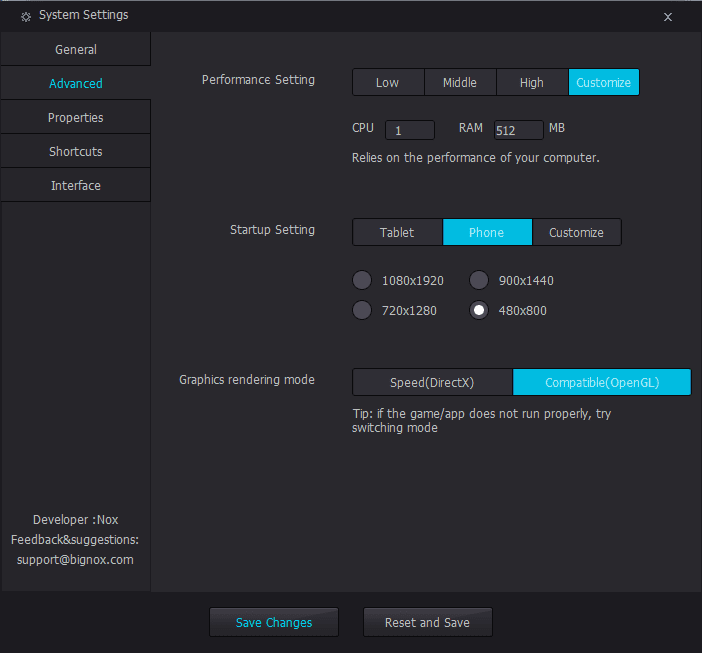
Untuk settingan, bisa kalian sesuaikan dengan yang sudah Jaka screenshot di bawah ini.
  • Klik Setting, lalu di tab General silakan kalian set Off pada Root.
tutorial 1
  • Selanjutnya pada tab Advanced, silahkan kalian atur Performance Setting menjadi Customize, lalu atur CPU 1 dan RAM 512 MB. Pada Startup Setting pilih Phone dan untuk resolusinya silakan kalian pilih yang 480 x 800. Terakhir, pada bagian Graphics rendering mode silakan kalian pilih yang Compatible.
tutorial 2
  • Untuk settingan pada tab PropertiesShortcuts, dan Interface, biarkan saja default.
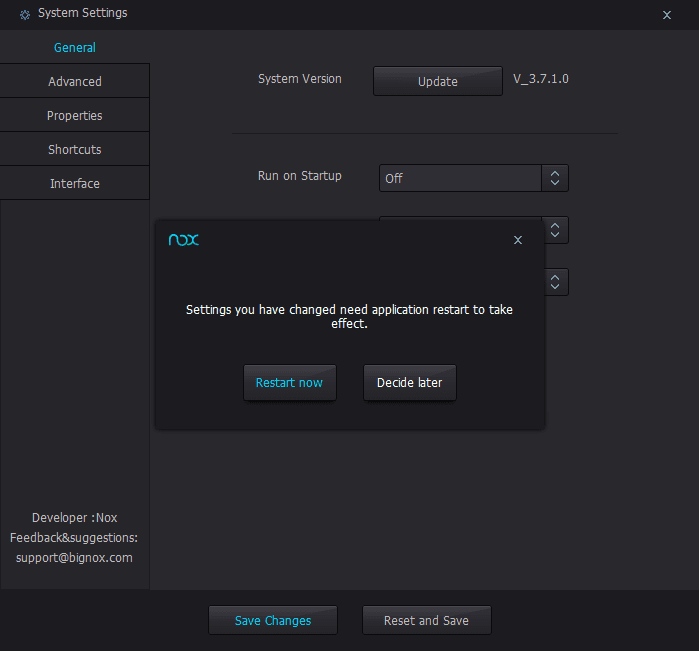
  • Terakhir jangan lupa klik Save Changes, lalu pilih Restart Now dan emulator Nox akan me-restart dengan sendirinya, lalu settingan akan berubah seperti yang sudah kalian atur.
tutorial 3
  • Sampai di sini kamu sudah bisa bermain Mobile Legends tanpa lag. Namun jika masih terasa lag, kamu bisa atur grafik Mobile Legends dari High menjadi Medium atau Low sesuai keperluan.
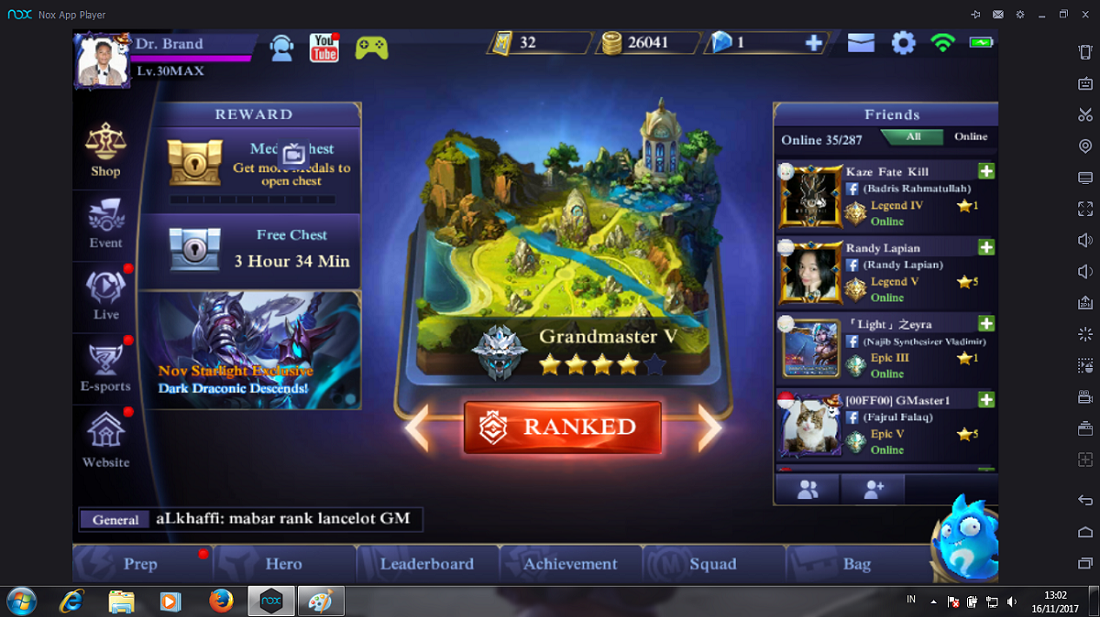
Mobile Legends di PC 1
Mobile Legends di PC 2
Okelah, itulah sedikit tips dari Jaka agar bisa bermain Mobile Legends di PC RAM 2GB tanpa lag. Bagaimana pendapat kamu? Jika kamu punya saran atau komentar, silakan bagikan di kolom komentar di bawah ya.

Comments

Popular posts from this blog

Reflector 3 Mirroring Free For Iphone

Reflector 2 is a wonderful wireless mirroring application to help you stream your data, video, and content to the big screen without using any wires. Using it, you can easily play games, watch movies, present your demos and much more from your own palm. Developed by Squirrel LLC, you can buy this smart screen mirroring application for just $14.99 from the store. The reflector has many luring features which have made it very popular among the users. It has Smart Layouts which make it choose the best layout automatically when multiple devices are connected. The another feature lets you spotlight one screen that matters most when multiple devices are connected. You can easily hide and show devices without disconnecting it. The most killing feature is that you can directly send the mirrored screen to YouTube. The official website from where you can download it is http://www.airsquirrels.com/reflector/download/. It is a very user-friendly app which involves such few steps to use it. Link ...

iOS Screen Recorder Free For Iphone Mirroring

is one of the best solutions for screen mirroring for your iPad, iPhone or iPod. With iOS Screen Recorder, you can easily record the screen of your device. It allows you to mirror your iOS device on your computer wirelessly, record games, videos and much more. It is one of the cool application developed from Wondershare for the users for recording and mirroring the screen of an iOS device. Dr Phone-iOS Screen Recorder is very easy to use, and you can record and mirror your device screen in just a few steps. You can buy this wonderful mirror app from the official website of Wondershare. You can use this link for buying it: https://drfone.wondershare.com/buy/drfone-ios-screen-recorder.html. You can also try it for free for testing, but all features are not free of cost . Link Here

How to fix “Nox App Player has stopped working” error by increasing the virtual memory size in your computer

If your computer shows the above error message when running Nox, you could fix it by changing the Virtual Memory Paging File Size. By default, the virtual memory (also known as paging file) size is managed by Windows and it could change automatically. This may cause the above problem “Nox App Player has stopped working”. To solve this problem, simply follow the below steps to change the virtual memory size: 1. Right click the Computer icon on your desktop and then click  Properties . 2. Go to  Advanced system settings  in the left navigation panel. 3. In the  System Properties  windows, go to  Advanced  tab and click  Settings  under Performance. 4. Keeping going to  Advanced  tab and click the  Change  button. 5. Uncheck “”Automatically manage paging file size for all drivers” and select “Custom size” below it. Usually when set your own virtual machine size, it is recommend that you set it to your phy...